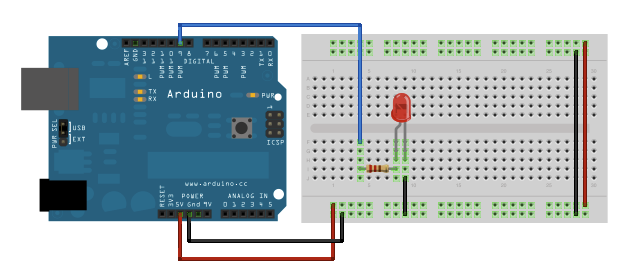
/* Fade This example shows how to fade an LED on pin 9 using the analogWrite() function. This example code is in the public domain. */int led = 9; // the pin that the LED is attached toint brightness = 0; // how bright the LED isint fadeAmount = 5; // how many points to fade the LED by// the setup routine runs once when you press reset:voidsetup() {
// declare pin 9 to be an output:pinMode(led, OUTPUT);
}
// the loop routine runs over and over again forever:voidloop() {
// set the brightness of pin 9:analogWrite(led, brightness);
// change the brightness for next time through the loop:
brightness = brightness + fadeAmount;
// reverse the direction of the fading at the ends of the fade:if (brightness == 0 || brightness == 255) {
fadeAmount = -fadeAmount ;
}
// wait for 30 milliseconds to see the dimming effectdelay(30);
}
/* Controlling a servo position using a potentiometer (variable resistor) by Michal Rinott <http://people.interaction-ivrea.it/m.rinott> modified on 8 Nov 2013 by Scott Fitzgerald http://arduino.cc/en/Tutorial/Knob*/
#include <Servo.h>
Servo myservo; // create servo object to control a servoint potpin = 0; // analog pin used to connect the potentiometerint val; // variable to read the value from the analog pin/////////////////////////////float volt ; // additional -2014-dec-30th -Monitoring voltagefloat Angle; // additional -2014-dec-30th -Monitoring voltage///////////////////////////////voidsetup()
{
myservo.attach(9); // attaches the servo on pin 9 to the servo object///////////////Serial.begin(9600); // 2014-dec-30th -Monitoring voltage///////////
}
voidloop()
{
val = analogRead(potpin); // reads the value of the potentiometer (value between 0 and 1023) ////////below added 2014 DEC 30th
volt=val*(5.0/1023.0) ; //cal the voltage ,//must use float and 5.0 digital point
Angle=val*(180.0/1023.0) ; //cal the angleSerial.print(val);
Serial.print(" Voltage : ");
Serial.print(volt);
Serial.print(" Angle: ");
Serial.println(Angle);
/////above added 2014 DEC 30thif ((val>10) && (val<1015)){
val = map(val, 0, 1023, 0, 180); // scale it to use it with the servo (value between 0 and 180)
myservo.write(val); // sets the servo position according to the scaled value delay(15); // waits for the servo to get there
}
////// below additional -2014-dec-30th -Monitoring voltageif (val<10) {
Serial.println(" below 10"); //safe control
}
if (val>1015) {
Serial.println(" over 1015"); //safe control
}
//////////////////////////above
}
* 10K resistor: 10K 電阻(我的9.5K 對比較佳)
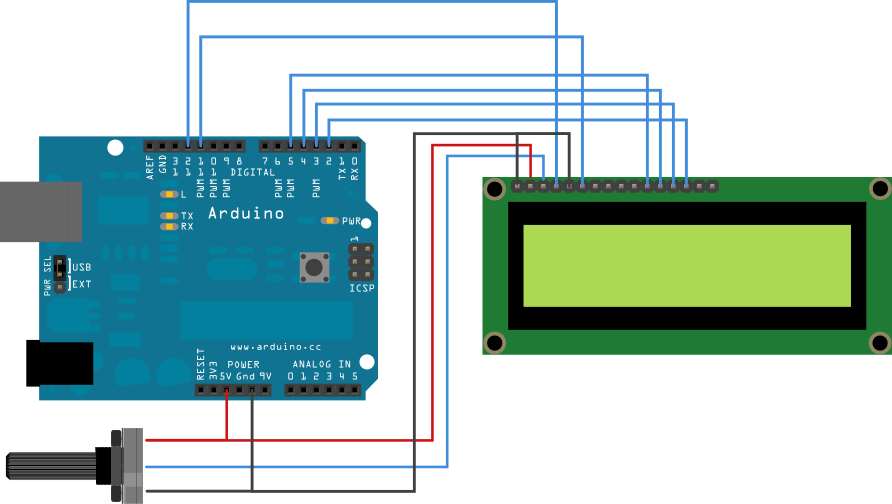
* ends to +5V and ground ㄧ端 接 正+5V, 一端接GND 負極 * wiper to LCD VO pin (pin 3) 從電阻後端 接分壓 線 接到LCD V0 腳位 Library originally added 18 Apr 2008 by David A. Mellis library modified 5 Jul 2009 by Limor Fried (http://www.ladyada.net) example added 9 Jul 2009 by Tom Igoe modified 22 Nov 2010 by Tom Igoe This example code is in the public domain. http://arduino.cc/en/Tutorial/LiquidCrystalCursor */// include the library code: 加入 函式庫檔案
#include <LiquidCrystal.h>
// initialize the library with the numbers of the interface pins 初始化腳位定義LiquidCrystal lcd(12, 11, 5, 4, 3, 2);
voidsetup() {
// set up the LCD's number of columns and rows: 初始化 設定LCD 欄數與列數
lcd.begin(16, 2);
// Print a message to the LCD. 輸出 訊息 到LCD上
lcd.print("hello, world!");
}
voidloop() {
// Turn off the cursor: 打開游標
lcd.noCursor();
delay(500);
// Turn on the cursor: 關閉游標
lcd.cursor();
delay(500);
}